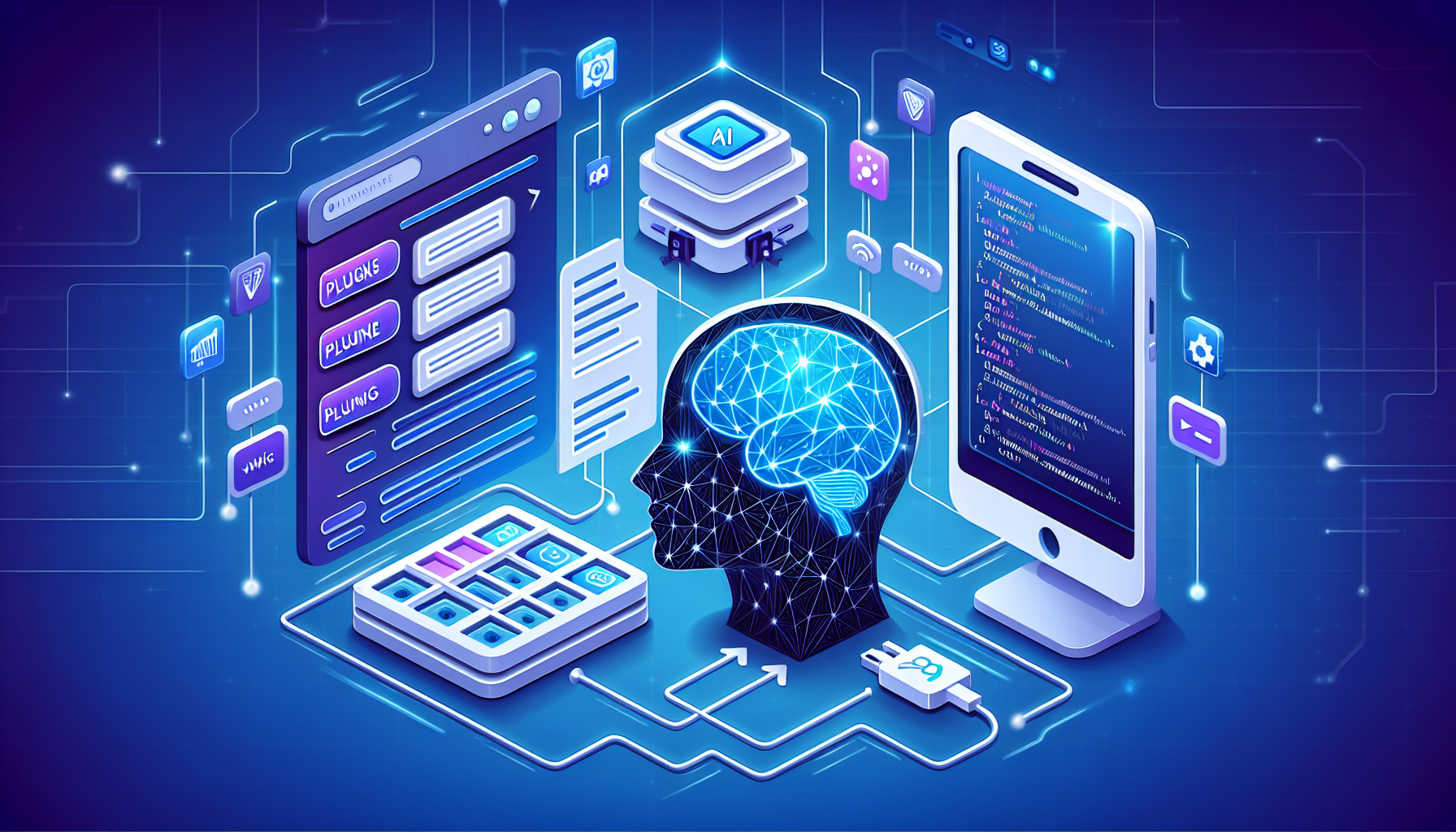
Managing a WordPress site has traditionally meant logging into the dashboard, navigating menus, and manually performing tasks one by one. Novamira changes that entirely.
Novamira is a WordPress plugin that exposes a set of powerful “abilities” — discrete, secure actions that an AI assistant can perform on your site on your behalf. Think of it as giving your AI a direct line into your WordPress environment, with the guardrails to keep things safe.
What Can Novamira Do?
Once connected, an AI assistant equipped with Novamira can:
Execute PHP code — Run arbitrary PHP with full access to the WordPress environment, including $wpdb, all WordPress functions, and any active plugins.
Read and write files — Read any file on the server, and write new files directly to the filesystem. PHP files are sandboxed for safety.
Edit existing files — Make precise, targeted edits to theme files, configuration files, or custom code using exact string replacement.
Delete files and directories — Clean up unused plugins, themes, or temporary files without touching the dashboard.
List directories — Browse the server filesystem with glob pattern support to quickly locate files.
Generate AI-powered alt text — Automatically produce accessible image descriptions using vision AI models.
Query post data — Retrieve post details and taxonomy terms by ID for content auditing or transformation tasks.
Why It Matters for Site Owners
For non-developers, Novamira lowers the barrier to making meaningful changes to a WordPress site. Instead of hiring a developer to write a small plugin or tweak a theme file, you can describe what you want in plain language and have it done in seconds.
For developers and agencies, it dramatically speeds up routine tasks — deleting unused plugins, auditing active code, creating draft content, or deploying small features — all without leaving the chat interface.
Built for the AI-Native Web
Novamira connects to AI assistants via the Model Context Protocol (MCP), an open standard for giving AI models structured access to external tools and systems. This means it works with any MCP-compatible AI, including Claude by Anthropic.
As AI assistants become a standard part of the web workflow, tools like Novamira represent a new category of site management — conversational, precise, and deeply integrated with the platforms we already use.
If you run a WordPress site and want to explore what AI-assisted management looks like in practice, Novamira is worth a close look.
Executive Summary: Bouncer is a GPL-licensed, open-source WordPress security plugin that operates within the application runtime, intercepting requests early in the WordPress lifecycle before expensive server operations occur. Unlike edge-based solutions such as Cloudflare, it uses behavior-based detection and application-level context to identify threats like credential stuffing, XML-RPC abuse, and brute-force attempts with greater precision. It is designed to complement existing perimeter defenses rather than replace them, while also reducing unnecessary server load.
In the evolving landscape of WordPress security, most solutions still focus on stopping threats before they ever reach your server, relying heavily on perimeter defenses like CDN-based firewalls and IP reputation systems. While those tools have their place, they often lack the context needed to accurately distinguish between legitimate users and increasingly sophisticated bots. This is where Bouncer introduces a different philosophy—one that shifts security decisions closer to where they matter most: inside the WordPress application itself.
Bouncer is a GPL-licensed, open-source plugin designed to act as a gatekeeper within the WordPress runtime. Rather than depending on static blocklists or external scoring systems, it evaluates incoming requests in real time, using the full context of the application. Because it operates after a request has passed through the network layer but before WordPress fully processes it, Bouncer can make more informed decisions based on actual behavior rather than assumptions derived from IP addresses or generic signatures.
Traditional security services such as Cloudflare attempt to filter malicious traffic at the edge, which is effective for large-scale attacks and known bad actors. However, these systems often struggle with WordPress-specific threats like credential stuffing, XML-RPC abuse, and low-and-slow bot activity that mimics legitimate users. Bouncer complements these services by focusing specifically on how requests behave once they interact with WordPress endpoints, providing a second layer of defense that is both more precise and harder to evade.
At its core, Bouncer hooks into early stages of the WordPress request lifecycle. This allows it to intercept traffic before expensive operations—such as database queries or full page rendering—take place. By analyzing patterns like repeated failed login attempts, unusual request frequency, malformed payloads, or suspicious use of APIs, the plugin can quickly identify abusive behavior and respond accordingly. This early interception not only improves security but also reduces unnecessary load on the server.
One of Bouncer’s defining characteristics is its behavior-based detection model. Instead of maintaining a massive global blacklist that can quickly become outdated or overly aggressive, it builds a localized understanding of what constitutes suspicious activity on your specific site. This makes it particularly effective against targeted attacks, where bots are tuned to bypass generic protections. It also reduces false positives, since decisions are made based on real interactions rather than broad assumptions.
Another advantage of operating within WordPress is access to application-level context. Bouncer can differentiate between authenticated users, administrators, and anonymous visitors, and it can adjust its behavior accordingly. For example, it can apply stricter controls to login endpoints while allowing normal browsing activity to proceed uninterrupted. This level of granularity is difficult—if not impossible—for external firewalls to achieve, as they lack visibility into WordPress-specific states and logic.
Performance is an often-overlooked aspect of security, but it’s one area where Bouncer provides tangible benefits. By blocking or throttling malicious requests early in the execution process, it prevents unnecessary PHP processing and database queries. Over time, this can lead to noticeable improvements in server responsiveness, especially on sites that experience frequent bot traffic or brute-force attempts. In this sense, Bouncer functions not just as a security tool, but also as a lightweight performance optimizer.
Because Bouncer is open source and GPL-licensed, it offers a level of transparency and flexibility that proprietary solutions cannot match. Developers and agencies can inspect the code, adapt its logic, or integrate it into broader workflows tailored to their infrastructure. This makes it particularly appealing for those managing multiple WordPress sites, where consistent and customizable security practices are essential.
It’s important to understand that Bouncer is not intended to replace edge-based protections entirely. Services like Cloudflare still play a critical role in mitigating large-scale DDoS attacks and filtering out obvious threats before they reach your origin server. Instead, Bouncer is best viewed as a complementary layer—one that handles the nuanced, application-specific threats that slip past traditional defenses.
Ultimately, Bouncer represents a shift in how WordPress security can be approached. By moving decision-making closer to the application and focusing on real behavior rather than static indicators, it aligns more closely with the realities of modern web traffic. For site owners and developers looking to strengthen their defenses without relying solely on external systems, Bouncer offers a compelling, lightweight, and highly adaptable solution.
Please note: This blog post above is entirely AI-generated, and WordPress 7.0-RC2 with the “AI” plugin generated everything except the article itself, including the title, summary paragraph, excerpt, and featured image.
My OpenAI ChatGPT prompt for the article itself: “Give me a long form 8-10 paragraphs blog post on Bouncer the plugin and how it operates?: https://github.com/RegionallyFamous/bouncer.git“
Bouncer requires WP 7.0 and can work with the Connectors AI page to connect to Anthropic AI for “deep dive” plugin evaluations. So, I figured I’d test out WP7.0-RC2, the AI plugin that creates the needed Connectors AI options, and create a blog post about it as well.
BTW, I realized the full image is being cropped above, here is the full image in all it’s AI-created glory:
Here’s the alt text it generated:
A cyberpunk-style guardian blocks malicious red traffic while allowing green traffic through a WordPress-secured server fortress under cyber attack.
Here is the AI prompt it used…
Generated by OpenAI using gpt-image-1.5 on 4/16/2026. Prompt: A dramatic digital security illustration showing a fortified gateway positioned deep inside a glowing WordPress application architecture, depicted as a layered cross-section of a server environment. In the foreground, a sophisticated bouncer figure rendered as a sleek, translucent digital guardian stands at an inner checkpoint, analyzing streams of incoming web traffic represented as flowing light particles and data streams. Some particles are green and pass through freely, while others glow red and are deflected or blocked. Behind the guardian, a clean and orderly application core hums with activity. In the background, a distant outer perimeter wall represents traditional edge firewalls, with large obvious threats being caught there, while subtle, smaller threats slip past—only to be stopped by the inner guardian. The overall aesthetic is dark and cyberpunk-inspired, with deep blues, electric greens, and sharp neon accents, rendered in a high-quality editorial tech illustration style.
Artificial intelligence is no longer just a software story—it’s a power struggle over creativity, infrastructure, and real-world autonomy. The latest developments across the AI landscape show three forces converging: smarter autonomous agents, escalating copyright clashes, and a rapid push to embed AI into everyday devices and industries.
Here’s what’s happening—and how you can stay ahead of the curve.
The Rise of Autonomous AI Agents
AI agents are evolving from simple chatbots into systems that can plan, execute tasks, use tools, and collaborate with other systems. Unlike traditional AI models that respond to prompts, agents can take initiative—booking meetings, conducting research, managing workflows, and even writing and deploying code.
Audit repetitive digital workflows in your business—customer onboarding, reporting, scheduling.
Test AI copilots before deploying full agents.
Establish human-in-the-loop checkpoints for high-stakes decisions.
The opportunity isn’t replacing teams—it’s amplifying them. Organizations that design thoughtful oversight systems will benefit most.
Copyright, Creativity, and Legal Crossroads
As generative AI systems train on vast quantities of online data, creators and media companies are pushing back. Lawsuits and licensing battles are intensifying, raising questions about ownership, attribution, and compensation.
This tension echoes the copyright clashes discussed in AI’s New Frontiers, where creative industries began redefining their relationship with machine-generated content.
Actionable insight:
Use AI tools with transparent training disclosures.
Implement content verification and watermarking where possible.
Create internal policies on how AI-generated assets are labeled and reviewed.
Trust is becoming a competitive differentiator. Brands that prioritize transparency will win long-term credibility.
AI Moves Into the Physical World
Beyond the cloud, AI is rapidly embedding itself into robotics, consumer electronics, and edge devices. From AI-powered assistants in smartphones to intelligent robots in logistics and healthcare, the boundary between digital and physical systems is fading.
We previously examined this shift in AI’s Expanding Frontier, highlighting how regulation and robotics are converging.
Actionable insight:
Explore edge AI solutions to reduce latency and improve data privacy.
Assess energy and infrastructure requirements before scaling AI deployments.
Monitor regulatory developments in your region.
AI’s next phase isn’t just smarter—it’s embodied. Businesses that integrate AI into operations, not just dashboards, will unlock transformative gains.
The Infrastructure and Energy Question
Behind every AI breakthrough lies an enormous computational backbone. Data centers, semiconductor supply chains, and energy consumption are becoming strategic concerns. The race to build faster chips and more efficient systems is intensifying globally.
Actionable insight:
Track the carbon footprint of AI initiatives.
Prioritize efficient model selection over sheer scale.
Diversify vendors to reduce dependency risks.
Responsible AI adoption now includes operational sustainability. Long-term resilience will matter more than short-term hype.
What This Means for You
AI in 2026 is defined by autonomy, accountability, and acceleration. Whether you’re a founder, creator, executive, or technologist, the key isn’t chasing every headline—it’s building adaptive systems that evolve alongside the technology.
Start small. Experiment deliberately. Create guardrails. And stay informed as the landscape shifts weekly.
Want to stay ahead of the AI curve? Explore our latest insights, share this article with your network, and subscribe for ongoing analysis of the technologies reshaping business and society.
Artificial intelligence is no longer just a software story—it’s a societal one. This week’s leading AI headlines highlight three powerful shifts: governments racing to regulate advanced models, newsrooms grappling with AI-generated content, and robotics companies pushing intelligent machines into the physical world. Together, these developments signal a turning point in how AI will shape business, creativity, and everyday life.
Here’s what’s happening—and how you can respond strategically.
The Global Push to Regulate Advanced AI
Policymakers across the US, Europe, and Asia are accelerating efforts to define rules for frontier AI systems. From mandatory safety testing to transparency requirements around training data, regulators are attempting to balance innovation with risk management.
The challenge? AI is evolving faster than legislation. Companies building large models must now prepare for compliance frameworks that may vary widely by region.
Actionable insights:
Audit your AI stack. Know which third-party APIs and models you rely on—and where data flows.
Design for transparency. Explainability and traceability will likely become competitive advantages.
If you’re tracking broader structural shifts in AI power, our recent analysis on copyright clashes and the global chip race explores how legal and infrastructure battles are redefining the competitive landscape.
AI-Generated Media and the Battle for Trust
Another major theme dominating headlines is the growing tension between generative AI tools and media integrity. News organizations are experimenting with AI-assisted reporting while simultaneously defending against deepfakes and misinformation.
AI can summarize documents, draft reports, and even generate photorealistic visuals—but it also lowers the barrier for manipulation. As synthetic content becomes harder to detect, trust becomes the most valuable currency.
Actionable insights:
Implement verification workflows. Combine AI speed with human editorial oversight.
Adopt watermarking or provenance tools. Invisible markers can help authenticate content.
Educate your audience or team. Digital literacy is now a strategic priority.
We’ve previously examined how synthetic media and autonomous systems are converging in AI’s fastest-rising trends, where trust and authenticity emerge as defining issues for 2026.
Intelligent Robots Move Into the Real World
Beyond software, AI-powered robots are stepping into warehouses, hospitals, and even homes. Advances in multimodal models—systems that process vision, language, and motion simultaneously—are making robots more adaptable and capable of handling unstructured environments.
This shift marks a move from narrow automation to embodied intelligence. Instead of performing a single repetitive task, next-generation robots can interpret instructions, adjust to obstacles, and collaborate with humans.
Actionable insights:
Start with augmentation, not replacement. Identify workflows where robots enhance human productivity.
Invest in upskilling. Employees who can supervise or integrate robotic systems will be in high demand.
Evaluate infrastructure readiness. Physical AI requires connectivity, safety systems, and data integration.
As discussed in our piece on AI at the tipping point, hardware and software advances are now deeply intertwined—making strategic planning essential.
What This Means for Leaders and Creators
The common thread across regulation, media disruption, and robotics is accountability. AI is no longer experimental—it’s operational. Organizations that treat it as a core strategic pillar, rather than a side project, will be better positioned to adapt.
The next 12–24 months will likely bring stricter oversight, smarter automation, and higher expectations for transparency. Whether you’re a founder, content creator, or enterprise leader, the question isn’t whether AI will impact your work—it’s how prepared you’ll be when it does.
Now is the time to:
Develop a clear AI governance framework
Strengthen digital trust practices
Experiment responsibly with automation
Want to stay ahead of the curve? Explore our latest AI insights and subscribe for weekly breakdowns of the trends shaping the future of automation, media, and intelligent systems.
Artificial intelligence isn’t just evolving—it’s accelerating. The latest wave of AI coverage highlights three dominant themes reshaping technology in 2026: autonomous agents moving from demo to deployment, synthetic media blurring reality at scale, and a growing battle over trust, ownership, and security.
While the headlines focus on breakthroughs and controversies, the real opportunity lies in how businesses and creators respond. Here’s what matters most—and what you can do about it.
1. Autonomous Agents Are Leaving the Lab
AI agents capable of planning, executing multi-step tasks, and interacting with software systems are rapidly transitioning from experimental tools to operational assets. Unlike simple chatbots, these agents can manage workflows, conduct research, write code, analyze data, and even coordinate with other agents.
This shift mirrors themes explored in AI’s New Power Surge, where autonomy and scalability take center stage.
Actionable insight:
Start with bounded use cases—customer support triage, internal knowledge retrieval, or marketing automation.
Keep a human-in-the-loop for approvals and quality control.
Track performance metrics early (accuracy, time saved, cost reduction).
The organizations that win won’t be those that experiment the most—but those that integrate agents thoughtfully into measurable business processes.
2. Synthetic Media Is Becoming Indistinguishable from Reality
From AI-generated video to hyper-realistic voice cloning, synthetic content is becoming cheaper, faster, and nearly indistinguishable from authentic media. While this unlocks creative and marketing potential, it also introduces serious risks around misinformation, fraud, and brand integrity.
As discussed in AI at the Tipping Point, deepfake security and digital authenticity are now strategic priorities—not optional safeguards.
Actionable insight:
Implement digital watermarking or content authentication tools.
Educate teams on recognizing synthetic manipulation.
Create a public AI-use policy to build transparency with customers.
The competitive edge won’t just come from using generative tools—but from proving your content can be trusted.
3. The Infrastructure Race Is Reshaping the Industry
Behind every flashy AI product is a massive infrastructure footprint. Chip manufacturers, cloud providers, and energy suppliers are engaged in a high-stakes race to power the next generation of models. Advanced GPUs, specialized AI accelerators, and energy-efficient data centers are becoming strategic assets.
This echoes broader industry shifts outlined in AI’s Next Wave, where infrastructure and sustainability intersect with innovation.
Actionable insight:
Audit your AI stack for cost and energy efficiency.
Explore smaller, fine-tuned models instead of defaulting to massive general-purpose systems.
Monitor regulatory developments tied to compute, energy usage, and data localization.
Efficiency is quickly becoming as important as capability.
4. The Growing Battle for Trust, Copyright, and Control
As AI systems train on vast quantities of public and proprietary data, legal and ethical challenges are intensifying. Copyright disputes, data usage transparency, and AI governance frameworks are moving into the mainstream.
For businesses, this isn’t abstract policy debate—it’s operational risk management.
Actionable insight:
Review vendor agreements for training data disclosures.
Document how AI-generated outputs are created and reviewed.
Stay informed on regional AI regulations that may affect deployment.
Organizations that proactively address governance will build long-term resilience—and customer confidence.
The Strategic Takeaway
The common thread across these trends is scale. AI is scaling autonomy, realism, infrastructure demands, and legal complexity all at once. That means reactive strategies are no longer sufficient.
To stay competitive in 2026:
Experiment strategically, not randomly.
Prioritize trust and transparency alongside innovation.
Invest in efficiency as much as capability.
Build cross-functional AI literacy within your organization.
AI’s fastest-rising trends aren’t just technological—they’re organizational. The companies that adapt structurally, ethically, and strategically will define the next chapter.
Ready to future-proof your AI strategy? Subscribe for weekly insights, or explore our latest AI analysis to stay ahead of the curve.
Artificial intelligence isn’t just evolving—it’s embedding itself into the systems we rely on most. From hospital diagnostics to digital authenticity tools and the future of employment, the latest developments in AI signal a shift from experimentation to deep integration. Here’s a breakdown of three major trends shaping the conversation right now—and how you can respond strategically.
1. AI in Healthcare: From Hype to Clinical Reality
AI-powered diagnostics and predictive tools are rapidly moving from pilot programs into real-world hospitals. Advanced models can now analyze medical images, flag early-stage diseases, and even predict patient deterioration before visible symptoms appear. What’s different in this wave is not just accuracy—it’s deployment at scale.
Hospitals are integrating AI into radiology workflows, pathology labs, and administrative systems to reduce burnout and improve patient outcomes. However, with this integration comes scrutiny around bias, data privacy, and regulatory oversight.
Actionable insights:
Healthcare leaders: Audit your data pipelines. AI is only as reliable as the datasets it’s trained on.
Tech teams: Prioritize explainability. Clinicians need interpretable results, not black-box outputs.
Entrepreneurs: Look for gaps in workflow optimization—AI adoption often stalls at integration, not innovation.
For a broader look at how AI infrastructure is reshaping industries, see our analysis on AI’s New Power Surge.
2. Invisible Watermarks and the Fight for Digital Trust
As generative AI tools flood the internet with synthetic images, video, and text, the race to authenticate content has intensified. Invisible watermarking and cryptographic provenance systems are emerging as potential solutions. These technologies embed signals into media files that can verify origin without altering the visible content.
The challenge? Standardization. Tech companies, regulators, and media organizations are still debating which systems should become universal—and whether bad actors will simply find ways around them.
Actionable insights:
Content creators: Adopt tools that provide content credentials to protect your work and build audience trust.
Businesses: Establish internal policies for verifying AI-generated materials before publication.
Consumers: Develop media literacy habits—verify sources, especially for viral content.
This authentication battle echoes concerns raised in our recent piece on AI at the Tipping Point, where deepfake security emerged as a defining risk of the current cycle.
3. The Workplace Is Being Rewritten—Task by Task
While headlines often focus on jobs being replaced, the more immediate transformation is task-level automation. AI systems are drafting emails, summarizing legal documents, generating code, and assisting with customer service. Rather than wholesale job loss, we’re seeing role redefinition.
Knowledge workers are increasingly managing AI tools as collaborators. The skill shift isn’t just technical—it’s strategic. Workers who can frame problems, evaluate outputs, and integrate AI into decision-making processes will have a distinct advantage.
Actionable insights:
Professionals: Invest in prompt literacy and critical evaluation skills.
Managers: Redesign workflows to combine human judgment with AI speed.
Organizations: Track productivity gains carefully—automation without measurement often leads to inefficiencies.
The broader economic implications mirror trends discussed in AI’s New Frontiers, where competitive advantage increasingly depends on how quickly institutions adapt.
4. Regulation and Responsibility Are Catching Up
Governments worldwide are accelerating efforts to regulate AI in healthcare, media, and employment contexts. New frameworks aim to balance innovation with consumer protection, focusing on transparency, accountability, and risk assessment.
For companies, this means compliance can no longer be an afterthought. AI governance structures—clear documentation, bias testing, and ethical review boards—are quickly becoming standard practice.
Actionable insights:
Conduct regular AI risk assessments.
Create cross-functional oversight teams.
Document model updates and decision logic.
The Bottom Line: Integration Is the Real Disruption
The most significant AI breakthroughs aren’t flashy demos—they’re quiet integrations into hospitals, newsrooms, and office software. Healthcare diagnostics, invisible watermarking, and task-level workplace automation all point to the same conclusion: AI’s impact is becoming systemic.
The question is no longer whether AI will transform your industry. It’s how prepared you are to shape that transformation responsibly and strategically.
Ready to stay ahead? Explore our latest AI insights and subscribe for weekly analysis on the trends redefining technology, business, and digital trust.
Artificial intelligence is no longer just a productivity tool—it’s becoming a companion, a courtroom defendant, and a geopolitical bargaining chip. Recent coverage across leading tech publications highlights three accelerating storylines: emotionally intelligent AI companions, escalating copyright battles over training data, and intensifying global competition for AI chips.
Together, these developments signal a deeper shift. AI isn’t just improving—it’s embedding itself into daily life, legal systems, and national strategy. Here’s what’s happening and how you can respond strategically.
The Rise of AI Companions and Personal Agents
AI-powered companions are evolving from novelty chatbots into deeply personalized digital assistants. They remember preferences, mirror communication styles, and increasingly act on users’ behalf—booking appointments, drafting emails, and even managing smart devices autonomously.
This shift toward “agentic AI” mirrors trends we explored in AI’s New Power Surge, where autonomous systems began moving from experimental to essential.
Actionable insights:
Audit your digital workflows: Identify repetitive tasks that an AI agent could manage end-to-end.
Set boundaries early: Decide what data your AI tools can access—and what remains off-limits.
Prioritize transparency: Use tools that clearly explain how decisions are made and what data is stored.
The opportunity is enormous—but so is the responsibility. As AI companions become more human-like, users must balance convenience with privacy and emotional dependency risks.
Copyright Battles and the Fight Over Training Data
At the same time, AI companies are facing mounting legal challenges over how their models are trained. Authors, artists, and publishers argue that their work has been used without permission or compensation. Courts are now grappling with whether large-scale data scraping qualifies as fair use—or infringement.
This echoes themes from AI Everywhere, where creative industries began pushing back against unchecked model training practices.
What this means for businesses and creators:
Review your data sources: If you’re training or fine-tuning models, ensure datasets are licensed or compliant.
Protect your IP: Consider watermarking, digital fingerprinting, or explicit licensing frameworks.
Prepare for regulation: New transparency laws may require disclosure of training data sources.
The legal landscape is still forming, but one thing is clear: AI innovation will increasingly be shaped by intellectual property law.
The Global AI Chip Race Intensifies
Behind every AI breakthrough lies powerful hardware. Nations are racing to secure semiconductor supply chains, invest in domestic manufacturing, and restrict exports of advanced chips. AI capability is now directly tied to compute access—and compute is geopolitical.
We previously examined this infrastructure power play in AI’s Next Inflection Point, highlighting how trust, regulation, and hardware are becoming inseparable.
Strategic considerations:
Diversify vendors: Avoid relying on a single cloud or chip provider.
Optimize efficiency: Smaller, fine-tuned models can reduce compute dependency.
Monitor policy shifts: Export controls and subsidies can rapidly alter market access.
For startups and enterprises alike, infrastructure strategy is now AI strategy.
Connecting the Dots: Responsibility in an Accelerating Era
These three threads—AI companions, copyright conflicts, and chip competition—share a common theme: scale. AI is scaling emotionally, legally, and politically. The organizations that thrive will be those that combine innovation with foresight.
Ask yourself:
Are we building AI systems people can trust?
Are we respecting creators and legal boundaries?
Are we resilient to infrastructure disruptions?
AI’s next chapter won’t be defined solely by model size or benchmark scores. It will be shaped by how responsibly we deploy, regulate, and scale these systems.
Call to Action: If you want to stay ahead of AI’s rapid evolution, subscribe for weekly insights and explore our latest analysis on automation, regulation, and infrastructure strategy. The future of AI is unfolding fast—make sure you’re building for where it’s going, not where it’s been.
Artificial intelligence isn’t just improving—it’s accelerating into new territory. Recent coverage across leading tech publications highlights three converging forces: autonomous AI agents moving from demos to deployment, synthetic media reshaping creative industries, and the growing energy demands of AI infrastructure. Together, these shifts signal a deeper transformation in how AI will shape business, culture, and the global economy.
Here’s what’s happening—and how you can prepare strategically.
1. Autonomous Agents Are Leaving the Lab
AI agents capable of planning, reasoning, and executing multi-step tasks are no longer experimental curiosities. They’re being integrated into customer service workflows, software development pipelines, and research environments. Unlike traditional chatbots, these systems can take action—booking appointments, writing and testing code, or synthesizing large datasets into decisions.
This marks a shift from assisted intelligence to delegated intelligence. Businesses aren’t just asking AI for answers; they’re assigning it responsibilities.
Actionable insight:
Start with bounded autonomy. Deploy AI agents in low-risk, high-volume processes.
Implement human-in-the-loop checkpoints for sensitive decisions.
Track not just output quality, but decision pathways and error patterns.
If you’ve been following our discussion on AI’s next inflection point, you’ll recognize that trust and governance are quickly becoming competitive advantages.
2. Synthetic Media Is Redefining Creativity
From AI-generated video clips to synthetic voiceovers and hyper-realistic imagery, creative industries are confronting a new reality: content can now be produced at scale with minimal human input. Film studios, advertisers, and independent creators alike are experimenting with AI tools that compress production timelines from months to days.
But this evolution comes with friction. Copyright concerns, labor disputes, and authenticity debates are intensifying. Who owns AI-generated work? How should creators be compensated when models are trained on vast troves of existing media?
Actionable insight:
Develop transparent disclosure policies for AI-assisted content.
Audit training data sources and licensing agreements.
Focus on hybrid workflows—pair human creativity with AI efficiency.
Behind every generative image and autonomous workflow lies massive computational infrastructure. Training frontier models and running large-scale inference workloads require vast amounts of electricity, water cooling systems, and advanced chips.
Governments and technology firms are now grappling with how to scale AI responsibly. Data centers are expanding, chip manufacturers are racing to produce more efficient hardware, and sustainability advocates are pushing for stricter reporting standards.
Actionable insight:
Evaluate the carbon footprint of your AI vendors.
Prioritize energy-efficient model architectures where possible.
Include sustainability metrics in procurement decisions.
AI strategy is no longer just about capability—it’s about infrastructure resilience and environmental accountability.
Connecting the Dots: Strategy in an Age of Acceleration
Autonomous agents increase operational leverage. Synthetic media accelerates content creation. Expanding infrastructure powers it all—but strains resources. These aren’t isolated developments; they reinforce one another.
For leaders, the question is no longer whether to adopt AI, but how to do so responsibly and competitively. That means:
Designing governance frameworks before scaling deployment.
Investing in workforce reskilling alongside automation.
Monitoring regulatory shifts and public sentiment.
Balancing innovation with sustainability commitments.
The organizations that thrive in this next phase will treat AI not as a tool, but as an ecosystem—technical, legal, cultural, and environmental.
The Bottom Line
AI’s momentum is undeniable. Autonomous agents are stepping into real-world roles. Synthetic media is challenging creative norms. Infrastructure demands are reshaping geopolitics and sustainability debates. This is not incremental change—it’s structural transformation.
Now is the time to audit your AI roadmap. Where can you safely delegate? How will you protect intellectual property? Are your technology partners aligned with your sustainability goals?
If you want to stay ahead of the curve, continue exploring our in-depth AI coverage and subscribe for weekly insights on emerging trends, governance strategies, and practical implementation guidance.
Artificial intelligence is no longer a lab experiment or a chatbot novelty—it’s becoming infrastructure. The latest wave of AI coverage highlights three powerful forces converging at once: autonomous agents operating in the real world, a surge in deepfake-driven security threats, and an intensifying global race for AI hardware dominance. Together, these shifts signal that AI has reached a tipping point.
Here’s what’s happening—and how you can respond strategically.
1. Autonomous AI Agents Are Moving From Assistants to Actors
AI systems are evolving from reactive tools into proactive agents capable of making decisions, executing multi-step tasks, and interacting with software—and even physical systems—on our behalf. Unlike traditional chatbots, these agents can plan, adapt, and refine their actions toward defined goals.
This leap brings enormous productivity potential. Businesses are experimenting with AI agents that manage supply chains, negotiate scheduling conflicts, monitor IT systems, and even draft and execute marketing campaigns. But it also raises new questions about oversight, accountability, and risk.
If you’ve been following the broader acceleration of autonomous systems, you’ll recognize how quickly this space is moving (see our analysis in AI’s Acceleration Moment).
Actionable steps:
Start with bounded autonomy. Deploy agents in low-risk, clearly scoped environments before expanding authority.
Implement human-in-the-loop review for high-impact decisions.
Create clear audit trails so every automated action is traceable.
Autonomous agents can unlock serious efficiency gains—but only if governance scales alongside capability.
2. Deepfakes and AI-Driven Cyber Threats Are Escalating
As generative models improve, so does their misuse. Hyper-realistic voice clones, video deepfakes, and AI-written phishing campaigns are becoming more convincing—and more accessible. What once required technical sophistication can now be executed with consumer-grade tools.
This is not just a misinformation problem. It’s a business risk. Fraudsters are impersonating executives in video calls. Synthetic audio is bypassing verification systems. AI-generated code is being used to probe software vulnerabilities at scale.
The trust layer of the internet is under pressure. As we explored in AI’s Next Inflection Point, the race for AI capability is now matched by a race for credibility and regulation.
Actionable steps:
Adopt multi-factor authentication that doesn’t rely solely on voice or video verification.
Train employees to identify AI-enhanced phishing and impersonation attempts.
Use AI detection and anomaly-monitoring tools to flag suspicious behavior patterns.
In the AI era, cybersecurity isn’t just about firewalls—it’s about authentication, provenance, and digital identity resilience.
3. The AI Hardware Race Is Redefining Global Power
Behind every powerful model lies an even more powerful computing stack. Demand for advanced chips, data centers, and energy infrastructure is skyrocketing. Governments and tech giants alike are investing billions to secure semiconductor supply chains and expand AI-ready cloud capacity.
This hardware race has geopolitical implications. Access to cutting-edge chips increasingly shapes national competitiveness, corporate advantage, and even military strategy. AI is no longer just software—it’s a strategic asset embedded in physical infrastructure.
We’ve already seen how devices, chips, and data control are converging in AI Everywhere. The takeaway is clear: organizations that ignore infrastructure trends risk being locked out of future innovation cycles.
Actionable steps:
Diversify cloud and compute providers to reduce dependency risk.
Monitor hardware supply constraints when planning AI-heavy initiatives.
Factor energy consumption and sustainability into AI scaling decisions.
AI capability increasingly depends on who controls the silicon—and the power grid behind it.
The Big Picture: Capability, Risk, and Responsibility
These three developments—autonomous agents, AI-driven security threats, and the hardware arms race—are deeply interconnected. More capable systems require more compute. More autonomy increases risk exposure. More power demands more oversight.
The organizations that thrive in this environment will treat AI not as a feature, but as infrastructure. That means building governance frameworks early, investing in security as aggressively as innovation, and keeping a close eye on the global dynamics shaping access to technology.
AI is at a tipping point. The question isn’t whether it will transform your industry—it’s whether you’ll shape that transformation or react to it.
Now is the time to audit your AI strategy, strengthen your security posture, and future-proof your infrastructure. The next phase of AI won’t wait.
Artificial intelligence is no longer confined to chatbots and cloud servers. This week’s biggest developments show AI rapidly embedding itself into everyday devices, colliding with copyright law, and intensifying the geopolitical fight over advanced chips. Together, these stories reveal a simple truth: AI is shifting from experimental technology to foundational infrastructure.
Here’s what these three major trends mean—and how you can respond strategically.
1. AI-Powered Consumer Devices Are Becoming the New Battleground
From AI-native smartphones to wearable assistants and next-gen laptops with dedicated neural processing units, hardware companies are racing to build devices that don’t just run AI—they prioritize it. On-device processing promises faster responses, improved privacy, and reduced cloud dependency.
On-device AI reduces latency and enhances personalization.
Hardware differentiation increasingly depends on AI capabilities.
Consumers may begin choosing products based on AI performance, not just specs.
Actionable tip: If you run a business, start optimizing your digital experiences for AI-native devices. Ensure apps, websites, and services integrate smoothly with voice agents, embedded copilots, and multimodal interfaces.
2. Copyright and AI: The Legal Reckoning Accelerates
As generative AI systems produce art, music, journalism, and code, legal challenges are mounting. Creators and publishers are questioning how their content is used in training data—and whether compensation or consent is required.
New licensing frameworks could reshape how AI companies source data.
Organizations using AI-generated content may face disclosure requirements.
Intellectual property strategies must adapt quickly.
Actionable tip: Audit your AI usage now. Identify where generated content appears in marketing, design, or customer communications. Develop a clear policy on attribution, disclosure, and data sourcing to reduce legal and reputational risk.
3. The Global Chip Race Is Defining AI’s Future
Behind every powerful AI model is specialized silicon. Governments and corporations are investing billions into semiconductor manufacturing, export controls, and next-generation chip architectures. Access to high-performance GPUs and AI accelerators is becoming both a business necessity and a geopolitical flashpoint.
As discussed in AI’s Acceleration Moment, infrastructure is the hidden engine driving autonomous systems and creative machines.
Why this matters:
Chip shortages or export restrictions can directly impact AI innovation.
Cloud providers with exclusive hardware access gain strategic leverage.
National policy increasingly shapes corporate AI strategy.
Actionable tip: Diversify your AI stack. Avoid overreliance on a single cloud provider or hardware ecosystem. Explore hybrid approaches that combine cloud scalability with edge or on-device computation.
4. What This Convergence Means for Leaders
Individually, these developments are significant. Together, they signal a structural shift. AI is embedding into hardware, reshaping legal frameworks, and redefining global supply chains—all at once.
For leaders, the takeaway is clear: AI strategy can no longer sit in a silo. It must intersect with compliance, procurement, product development, and long-term risk planning.
Ask yourself:
Is our organization prepared for AI-native customer expectations?
Do we understand the legal exposure of our AI tools?
How resilient is our access to compute infrastructure?
The companies that thrive in 2026 will not simply adopt AI tools. They will build adaptive systems—technological, legal, and operational—that evolve alongside the technology itself.
Final Thoughts: From Trend to Infrastructure
AI is transitioning from a breakthrough innovation to a foundational layer of the modern economy. Devices are becoming intelligent endpoints. Courts are defining digital authorship. Nations are competing for silicon supremacy.
The opportunity? Those who anticipate these shifts can position themselves ahead of the curve—before AI becomes an assumed baseline rather than a competitive edge.
If you want to stay ahead of the AI curve, subscribe for weekly insights and strategic breakdowns designed to help you navigate this rapidly evolving landscape.